

Smart Golf Club System Setup & Pairing: Step-by-Step Guide
Setting up a smart golf club system doesn't have to be complicated. Whether you're protecting your entire bag or just your most expensive clubs, the pairing process is straightforward once you know the basics.
Here's the honest truth: most golfers lose at least one club every year. It's frustrating, expensive, and totally preventable with the right tech. Golf Club Watch Knowledge makes the setup process simple enough that you'll be tracking your clubs within minutes of opening the box.
Related: How Golf Club Tracking Technology Works: A Guide
Related: Best Golf Club Finder Device Guide 2026
Related: How to Set Up Golf Pad Tags on iPhone: Step-by-Step Guide
In this article
- What You Need Before Starting
- Understanding Smart Golf Club System Setup Basics
- Step-by-Step Smart Golf Club System Pairing Process
- Choosing Your Coverage Level
- Pro Tips for Smooth Pairing
- Understanding the App After Pairing
- What Happens If Pairing Fails
- Maintaining Your Smart Golf Club System
- Next Steps: Your First Round with Tracked Clubs
What You Need Before Starting
Before you dive into pairing, grab these items:
- Your smart golf sensors (whether it's a 2-pack, 4-pack, or full 13-pack)
- Your smartphone (iOS or Android)
- The ClubWatch mobile app (download it first)
- Your golf clubs
- About 10 minutes of free time
That's it. No special tools, no confusing software, no desktop installation required.
Understanding Smart Golf Club System Setup Basics
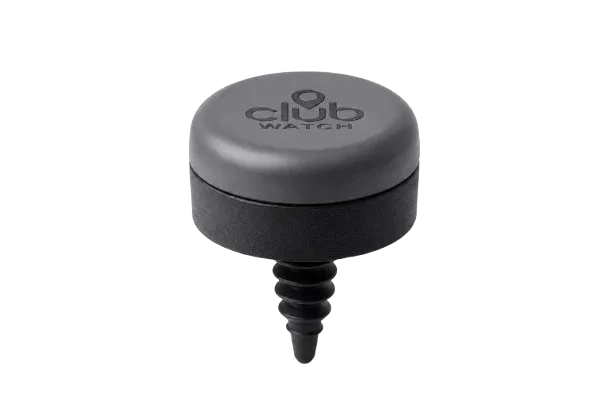
A smart golf club system setup is all about connecting your lightweight sensors to your phone so your clubs stay tracked in real time. The system uses Bluetooth to communicate between your sensors and your device.
Related: How Smart Golf Sensors Attach to Clubs: Setup Guide
Here's what happens behind the scenes: each sensor attaches to your club grip and talks to your phone's app. The app knows which club is which and alerts you instantly if a club gets left behind on the course or in the clubhouse. No more panicked drives back to the 9th hole.
The beauty of this approach is that it doesn't interfere with your swing, your grip, or your game. The sensors are lightweight and compact, designed to sit on your club grips without getting in the way.
Step-by-Step Smart Golf Club System Pairing Process
Step 1: Download and Open the App
Open your phone's app store and download the ClubWatch app. Create your account (it takes 30 seconds) and log in. You'll land on the home dashboard.
Step 2: Access the Clubs Management Page
Look for the "Clubs" section in the app menu. This is where all the pairing magic happens. You'll see options to add new clubs or manage existing ones.
Step 3: Start the Pairing Wizard
Tap the option to add a new club. The app will prompt you to turn on Bluetooth on your phone (if it's not already on). Make sure Bluetooth is enabled before moving forward.
Step 4: Physically Place Your Sensor on the Club
Take your first sensor and attach it securely to the grip of the club you want to protect. If you're using the ClubWatch 4-Pack — Protect Your Putter & Wedges, start with your putter or your most-used wedge.
The sensor should feel snug but comfortable. You're not trying to squeeze it; just make sure it sits flat against the grip.
Step 5: Select Your Club Type
In the app, choose which club you're pairing. The app will show you a list of clubs (driver, putter, irons, wedges, etc.). Select the exact club you're attaching the sensor to.
Step 6: Complete the Connection
The app will search for your sensor via Bluetooth. This usually takes 5-10 seconds. Once the sensor is detected, tap "Connect" or "Pair" to finalize the link. You'll see a confirmation message when it's successful.
Step 7: Repeat for Each Club
Now rinse and repeat. Attach your next sensor to another club, follow steps 5-6, and keep going until you've paired all your sensors.
If you're going for full coverage with the ClubWatch 13-Pack — Whole-Bag Coverage, Best Value, you'll have a sensor on every single club. That means complete peace of mind from the first tee to the last hole.
Choosing Your Coverage Level
Here's where you get to decide what works for your game.
If you're protecting your most-used clubs, the ClubWatch 2-Pack — Putter & Wedge Starter covers your putter and wedge. These are often the most expensive or emotionally valuable clubs, so starting here makes sense.
If you want to protect your entire short game and some irons, grab the 4-pack.
If you want zero worries and complete tracking of your entire bag, go with full coverage. Studies show comprehensive tracking across all 14 clubs provides the highest confidence and prevents the most lost equipment.
Related: Golf Equipment Management for Club Sets: A Complete Guide
You can also add individual sensors later with the ClubWatch Single Sensor — Add-On & Replacement if you decide to expand.
Pro Tips for Smooth Pairing
Keep Bluetooth On - Don't turn off Bluetooth between pairings. It speeds up the process for each additional club.
Attach Sensors First - Don't add clubs to the app before physically attaching the sensors. It's easier to pair them in the order you attach them to your clubs.
Stay Close to Your Phone - During initial pairing, keep your phone within a few feet of each sensor. Bluetooth works best at close range.
Test One Club First - If you're new to smart club systems, pair one club and use it for a round. Make sure you're comfortable with the alerts and notifications before committing to your whole bag.
Update Your App - Before you start, make sure your ClubWatch app is up to date. Outdated apps sometimes have pairing glitches.
Understanding the App After Pairing
Once your clubs are paired, the app becomes your control center. You'll see:
- Real-time location of each club on the course
- Instant alerts if a club goes missing
- Performance stats (if you opt for premium features)
- Digital scorecards
- AI swing analysis (premium tier)
The app runs in the background during your round, so you don't need to check it constantly. You'll get a notification the moment something's wrong.
What Happens If Pairing Fails
Sometimes a sensor won't connect on the first try. Here's what to do:
Force Restart the App - Close the app completely and reopen it. Sometimes a fresh start fixes Bluetooth hiccups.
Toggle Bluetooth Off and On - Turn Bluetooth off for 10 seconds, then turn it back on. This resets your phone's Bluetooth connection.
Move Closer to the Sensor - If you're far away, walk closer to the club with the sensor. Bluetooth has a limited range.
Check Your Sensor Battery - If the sensor battery is dead, it won't pair. Make sure your sensors are charged before starting the pairing process.
Contact Support - If you've tried these steps and still can't pair, reach out to Golf Club Watch Knowledge customer support. Their team can walk you through advanced troubleshooting.
Maintaining Your Smart Golf Club System
After pairing, maintenance is minimal. Here's what to know:
Check your sensor batteries before each season. Most sensors last 200-300 hours of on-course time. If you play weekly, that's 4-6 months of use.
Keep the app updated to ensure your sensors stay compatible with the latest features.
If you lose a club and need a replacement sensor, the ClubWatch Single Sensor — Add-On & Replacement is available for quick replacement.
For oversized grips (SuperStroke grips, for example), check if your sensors are compatible. Some grip styles need special consideration. Reach out to Golf Club Watch Knowledge if you have a specific grip type you're not sure about.
Next Steps: Your First Round with Tracked Clubs
Once your clubs are paired, you're ready. Go play.
During your first round, pay attention to the notifications. You'll get alerts if a club is left behind at a hole, in the cart, or at the clubhouse. These alerts are your safety net.
The real value shows up on your second or third round when you realize you never once worried about a lost club. That peace of mind is priceless.
If you're curious about premium features like GPS mapping or swing analysis, most of those unlock after you've got your basic pairing down. Don't feel pressured to go premium right away. The core tracking system is powerful enough on its own.
Do I need to pair my clubs every time I go to the golf course?
No. Once you pair your clubs, they stay paired. Your phone remembers each sensor. You just need to make sure Bluetooth is turned on when you arrive at the course, and your app will automatically connect to your sensors. It's one-time setup, then ongoing protection.
Can I pair my sensors to multiple phones?
Each sensor can typically be paired to one primary account. If you share clubs with a family member or friend, you'd need to decide whose account to link them to. Some premium tiers allow multiple users, so check with Golf Club Watch Knowledge about multi-user options if this is important to you.
What if one of my sensors dies or gets lost?
You can unpair the old sensor through the app and purchase a replacement. The ClubWatch Single Sensor — Add-On & Replacement is designed for exactly this situation. Pairing a new sensor takes the same 2 minutes as the original setup.
Are smart golf club sensors waterproof?
Yes. Golf is wet sometimes. Your sensors are built to handle rain, damp grass, and occasional dunks in water hazards. They're designed for on-course conditions. That said, avoid intentionally submerging them for extended periods.